

After you install Ophel Atlas and open any supported AI site, the panel activates automatically. A side panel appears on the right edge of the screen, and a small group of floating quick-action buttons appear nearby. This page explains how each part of the panel works so you can navigate it efficiently from day one. If the panel does not appear, press Alt+P (Mac: Option+P) to open it.Documentation Index
Fetch the complete documentation index at: https://urzeye.mintlify.app/llms.txt
Use this file to discover all available pages before exploring further.
The three tabs
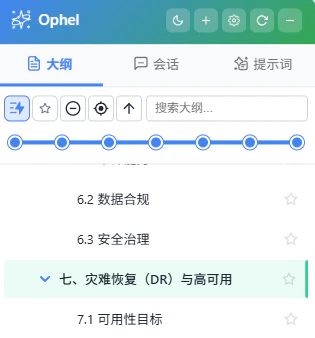
Alt+1, Alt+2, Alt+3 (Mac: Option+1/2/3).
Outline
A live, auto-generated table of contents for the current conversation. Click
any heading to jump to it instantly. Supports collapse, expand, search,
bookmarks, and real-time word counts.

Conversations
An aggregated history from all supported AI platforms. Organize
conversations into folders and tags, search with syntax filters, and export
to Markdown, JSON, or TXT.
Prompts
Your personal prompt library. Click a prompt to insert it into the chat
input box; double-click to insert and send immediately. Supports variable
substitution, categories, and pinning.
Panel header
The strip at the very top of the panel gives you fast access to core controls.| Element | Action |
|---|---|
| Title area | Hover to see a random usage tip with shortcuts adapted to your OS and key bindings. Double-click to toggle privacy mode, which hides the tab title. |
| Mode toggle | Switches between Edge Snap and Floating mode with one click. |
| Theme toggle | Switches between light and dark mode. Shortcut: Alt+D (Mac: Option+D). |
| Settings button | Opens the settings dialog. Shortcut: Alt+, (Mac: Option+,). |
Floating quick buttons

- The group auto-collapses into a pill shape after about 5 seconds of inactivity. Move your cursor within roughly 150 px of it to expand it again.
- Long-press and drag any button to reposition the entire group to a different spot on screen.
- Click ☰ (Toolbox) to reveal additional actions: export conversation, move to folder, assign tags, toggle scroll lock, model lock, and more.
Keyboard shortcuts
| Action | Windows / Linux | Mac |
|---|---|---|
| Open / close panel | Alt+P | Option+P |
| Toggle panel mode | Alt+M | Option+M |
| Switch to Outline tab | Alt+1 | Option+1 |
| Switch to Conversations tab | Alt+2 | Option+2 |
| Switch to Prompts tab | Alt+3 | Option+3 |
| Global search | Ctrl+K or double Shift | Cmd+K or double Shift |
| Toggle light / dark | Alt+D | Option+D |
| Open settings | Alt+, | Option+, |
Global search
PressCtrl+K (Mac: Cmd+K) or tap Shift twice to open global search. It searches across your outline headings, conversation history, prompt library, and settings in a single query. You can also use advanced syntax filters:
| Filter | Example | Effect |
|---|---|---|
folder: | folder:work | Limit to a specific folder |
tag: | tag:research | Limit to a specific tag |
type: | type:prompt | Limit to a content type |
date: | date:2025-01 | Limit to a date range |
level: | level:2 | Limit to a heading level in Outline |
is: | is:pinned | Limit to pinned items |
Ghost pass-through mode
Edge snap and floating mode
| Mode | Behavior |
|---|---|

| Edge Snap | The panel hugs the screen edge and stays hidden. Hover over the edge to peek at the panel content. |
| Floating | The panel floats above the page, stays fully visible at all times, and can be freely repositioned by dragging the title bar. |
Panel size and position settings
All of these are in Settings → General → Panel:| Setting | Description | Default |
|---|---|---|
| Panel mode | Edge Snap or Floating | Edge Snap |
| Default side | Left or right side of the screen | Right |
| Panel width | 240–600 px | 320 px |
| Panel height | 50–100 vh | 85 vh |
| Edge distance | Distance from the screen edge when in Floating mode | 0 px |
| Snap threshold | Distance from edge that triggers automatic snapping | 30 px |
Quick buttons behavior
In Settings → General → Quick Buttons Behavior, you can also toggle:- Hide quick buttons when panel is open — the floating button group automatically hides while the panel is open, and reappears when you close the panel.
Next steps
Smart outline
Learn how the live outline works — locate mode, follow mode, bookmarks, and
word counts.
Conversation management
Organize your chat history with folders, tags, search, and batch exports.
Prompt library
Build and use a reusable prompt library with variable templates and a prompt
queue.
Shortcuts
View the full shortcut reference and configure custom key bindings.