

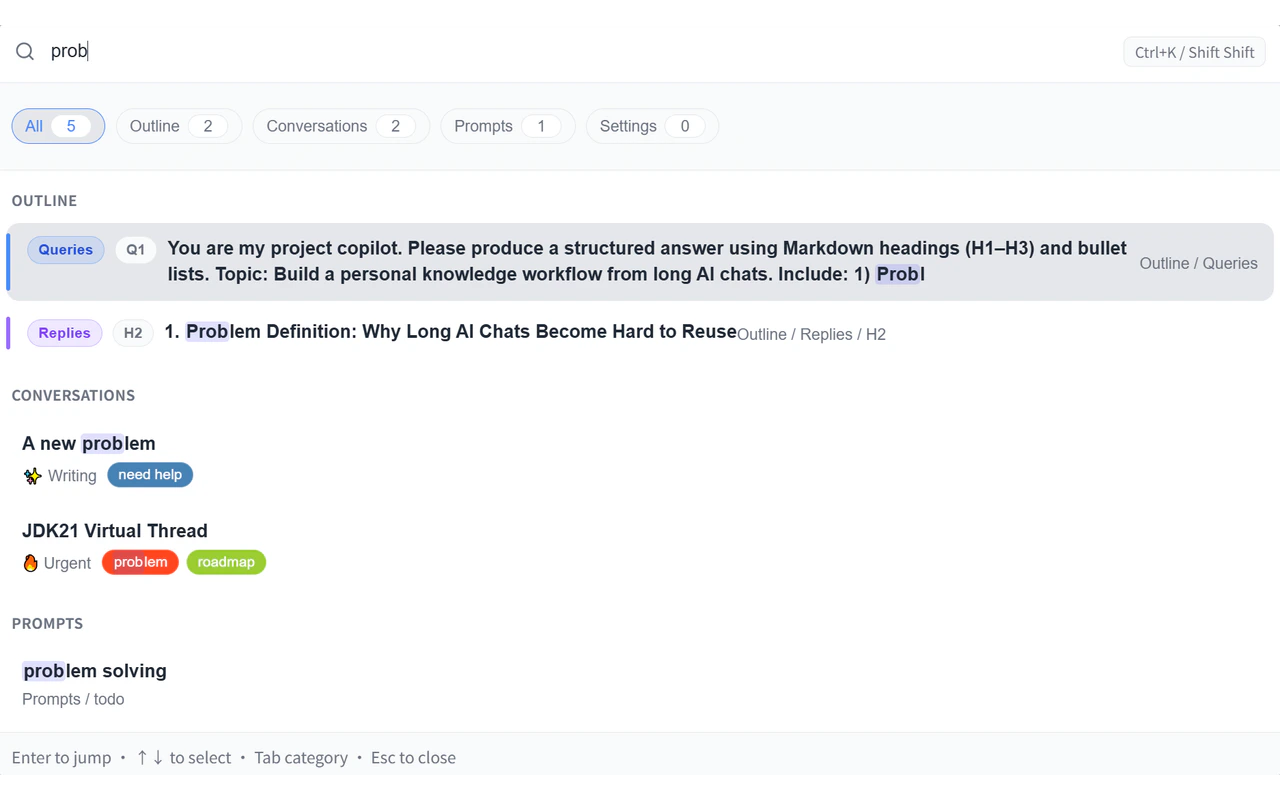
Global Search brings every piece of content Ophel knows about into a single search field. Instead of switching between tabs to find a heading, conversation, or saved prompt, you open one overlay and search everything at once. Results are grouped by type, and selecting one jumps you directly to that item.Documentation Index
Fetch the complete documentation index at: https://urzeye.mintlify.app/llms.txt
Use this file to discover all available pages before exploring further.
How to open Global Search
| Method | Description |
|---|---|
Ctrl+K (Mac: Cmd+K) | Default keyboard shortcut |
| Floating button | Click the search icon in the floating quick-buttons group |
| Double Shift | Press Shift twice in quick succession — optional; enable in Settings → Global Search. Works even when the page is not focused |
Double Shift must be enabled in settings before it works. Unlike other
shortcuts, it does not require the page to be focused, making it useful when
you are interacting with another part of the browser.
Search scope
Global Search covers five result types:| Type | What is included |
|---|---|
| Outline nodes | All headings and your questions in the current conversation |
| Conversations | Saved conversations across all platforms — searchable by title, tag, or folder |
| Prompts | Titles and content from your prompt library |
| Settings | Feature names and keywords from the settings page |
| Feature Tips | Ophel feature discovery tips — type tip: to browse them |
Syntax filters
Add akey:value prefix to narrow results. Multiple filters can be combined with each other and with plain keywords.
| Filter | Applies to | Values | Example |
|---|---|---|---|
type: | All | outline · conversations · prompts · settings | type:conversations |
folder: | Conversations | Any folder name (partial match) | folder:work |
tag: | Conversations, Prompts | Any tag name (partial match) | tag:research |
is: | Conversations | pinned · unpinned | is:pinned |
level: | Outline nodes | 0 – 6 (heading depth) | level:2 |
date: | Conversations, Prompts | Nd — up to 999 days (e.g. 7d, 30d) | date:30d |
Type
tip: in the search box to switch into Feature Tips mode. This is not a
syntax filter — it bypasses normal search and lists Ophel feature discovery
tips instead.Fuzzy search
When fuzzy search is enabled, Ophel allows partial matches — searchingrans finds translate. When it is off, only exact substring matches are returned.
Toggle fuzzy search in Settings → Global Search.
Selecting a prompt result
When you press Enter on a prompt result, Ophel adapts to the context:- Smart insert (default) — if an AI input box is available on the current page, the prompt is inserted directly into it
- Locate only — Ophel switches to the Prompts tab and highlights the entry, without inserting
Search tips
Find a conversation by folder
Find a conversation by folder
Type
folder: followed by part of the folder name. You do not need to type the full name — partial matches work when fuzzy search is on.Find all conversations with a specific tag
Find all conversations with a specific tag
Type
tag: followed by the tag name.Filter by pin state
Filter by pin state
Use
is:pinned to see only pinned conversations, or is:unpinned to exclude them.Filter by recency
Filter by recency
Use
date:Nd to limit results to conversations or prompts updated within the last N days. For example, date:7d returns items from the past week.Filter by heading level
Filter by heading level
Use
level:n (0–6) to find outline nodes at a specific heading depth. Level 1 is an <h1>, level 2 is <h2>, and so on. Level 0 matches your own questions in the conversation.Jump to a settings page
Jump to a settings page
Type a feature or setting name directly. For example, typing
theme surfaces the Appearance settings entry; typing shortcut brings up the Shortcuts page.Find an outline heading in the current conversation
Find an outline heading in the current conversation
Open Global Search while reading a conversation and type part of a heading. Selecting the result scrolls the conversation to that heading and highlights the matching outline entry.
Settings
Go to Settings → Global Search to configure:| Setting | Description |
|---|---|
| Double Shift | Enable double-pressing Shift to open search |
| Fuzzy search | Allow partial matches when on; exact substring matches only when off |
| Prompt Enter behavior | What happens when you press Enter on a prompt result: smart insert or locate only |